Help topics
My assets: your models in one place
My assets holds every model you built, every free or community model you added, and anything you uploaded. From here you download, install, animate, edit, share or hide a model. You need to be signed in.
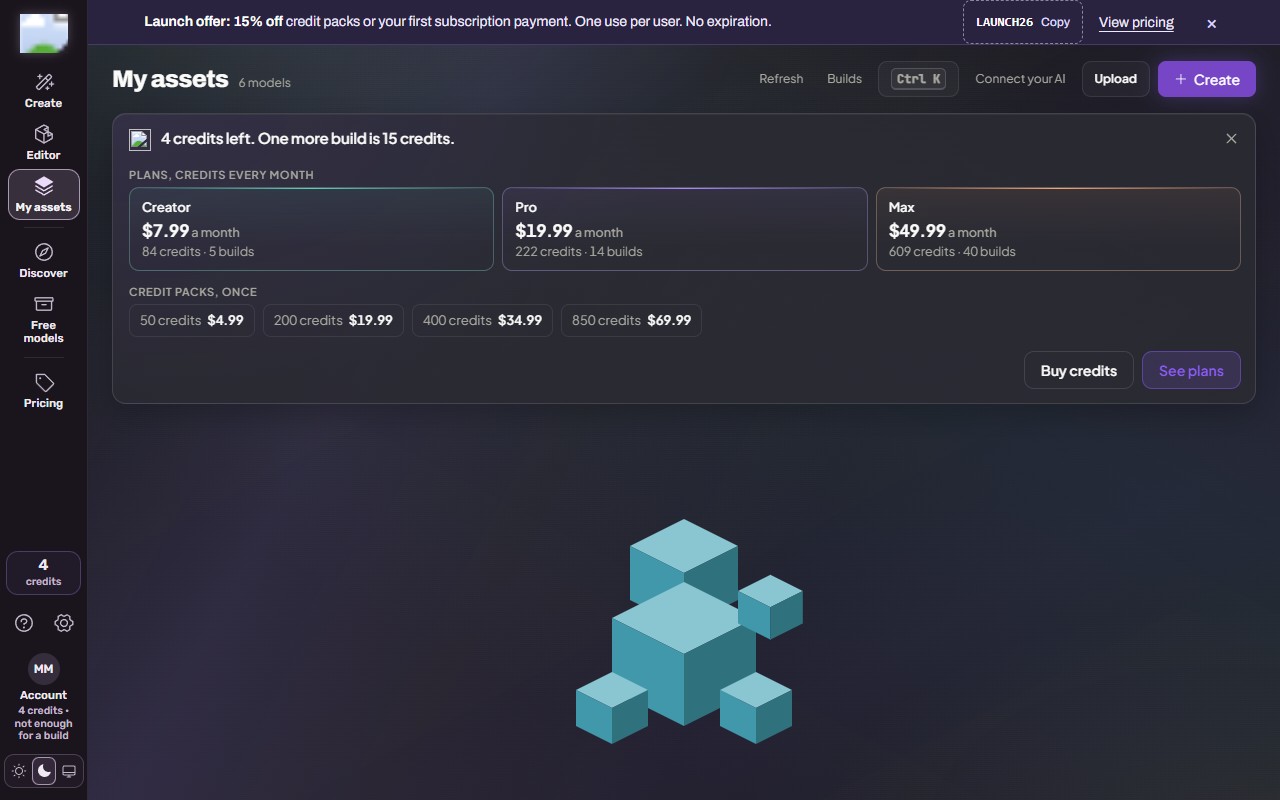 (opens the full picture in a new tab)
Steps
Open My assets in the left rail (on a phone: Menu, My assets).
Find a model: Search assets, the All and Models filters, sort by Newest, Oldest or Name, More filters, and Grid view or List view. Builds still running are at the top with a link to their build page.
Select a model. Its panel opens with the 3D view (switch Model or Concept image) and the Saved version menu.
Use it in your game:
Simple download (model and texture), Download for Hytale, Download for Minecraft;
More ways to use it in Hytale and More ways to use it in Minecraft for the other files;
Other formats for the All files ZIP and GLB, glTF, OBJ, FBX, STL, PLY;
How to install for the steps on your computer. See Downloads: which one to pick.
Animations & effects: play the saved clips and effects, or + Add animation and + Add effect (opens Create on that model). See Add an animation or an effect to a model.
Edit in the Editor opens the model in the Editor (Fix a model by hand in the Editor).
Connect your AI lets Claude, ChatGPT, Claude Code or Codex use this model (Connect your AI (Claude, ChatGPT, Claude Code, Codex)).
The tabs How to use, Details and Files show install steps, the model's facts and every file.
The Private switch hides the model from everyone else (Creator plan and up), see Share a model, or keep it private.
The bar at the top has Refresh, Builds (every build), Commands (Ctrl K), Connect your AI, Upload (Upload your own model files (plan holders)) and Create (a new model).
On a phone
The list comes first; tap a model to open its panel full screen.
What it costs
My assets is free. Downloads of your own models are free. Edits, animations and effects show their price first.
If it does not work
My assets is empty right after a build
The build may still be running; press Refresh, or open Builds.
"Could not load" or a connection error
Press Refresh. A connection error does not mean your models are gone.
A model you got from Discover is missing
Models added from Discover and the free Archive appear in My assets; press Refresh after adding one.
An animation is missing in the download
It may be saved on another version; pick that version in Saved version.
Still stuck? Contact support