Help topics
Make a model from a description
Describe what you want in a sentence or two. Forge builds a blocky 3D model with named parts and a painted texture, for Hytale, Minecraft, or general use.
Steps
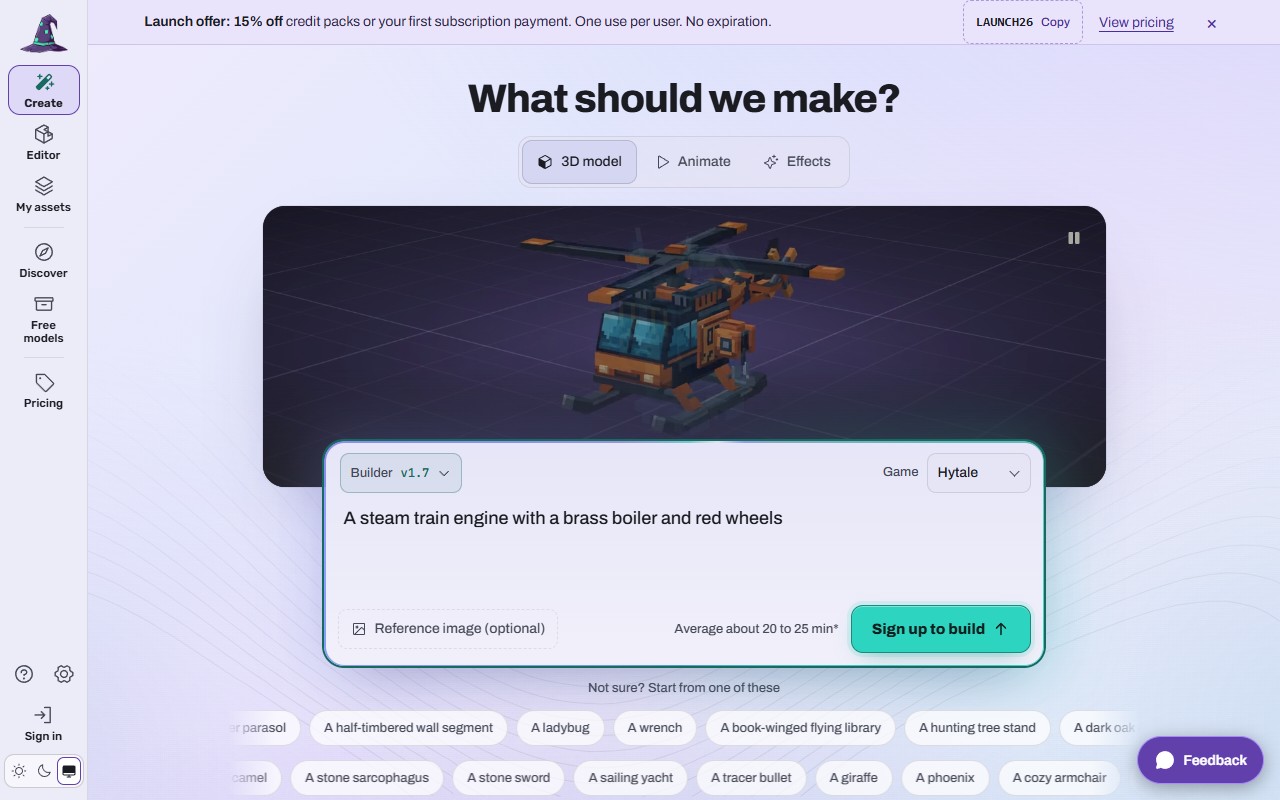
Open Create (left rail, or the bottom bar on a phone). The 3D model tab is chosen.
 (opens the full picture in a new tab)
Choose the Game: Hytale, Minecraft or General. It sets the size and the downloads Forge prepares first. You can still download for the other game later.
Describe your model in the box. Say what it is, its shape and size, its colours and materials. For example: "A steam train engine with a brass boiler and red wheels". Short is fine. Stuck? Press Use this example, or pick one of the starter ideas under the box ("A flower cart", "A pirate flag"...).
Optional: open Build settings (under the box) and choose what kind of thing it is: Item, Block, Character, Creature, Prop or Structure. Leave it on General if you are not sure.
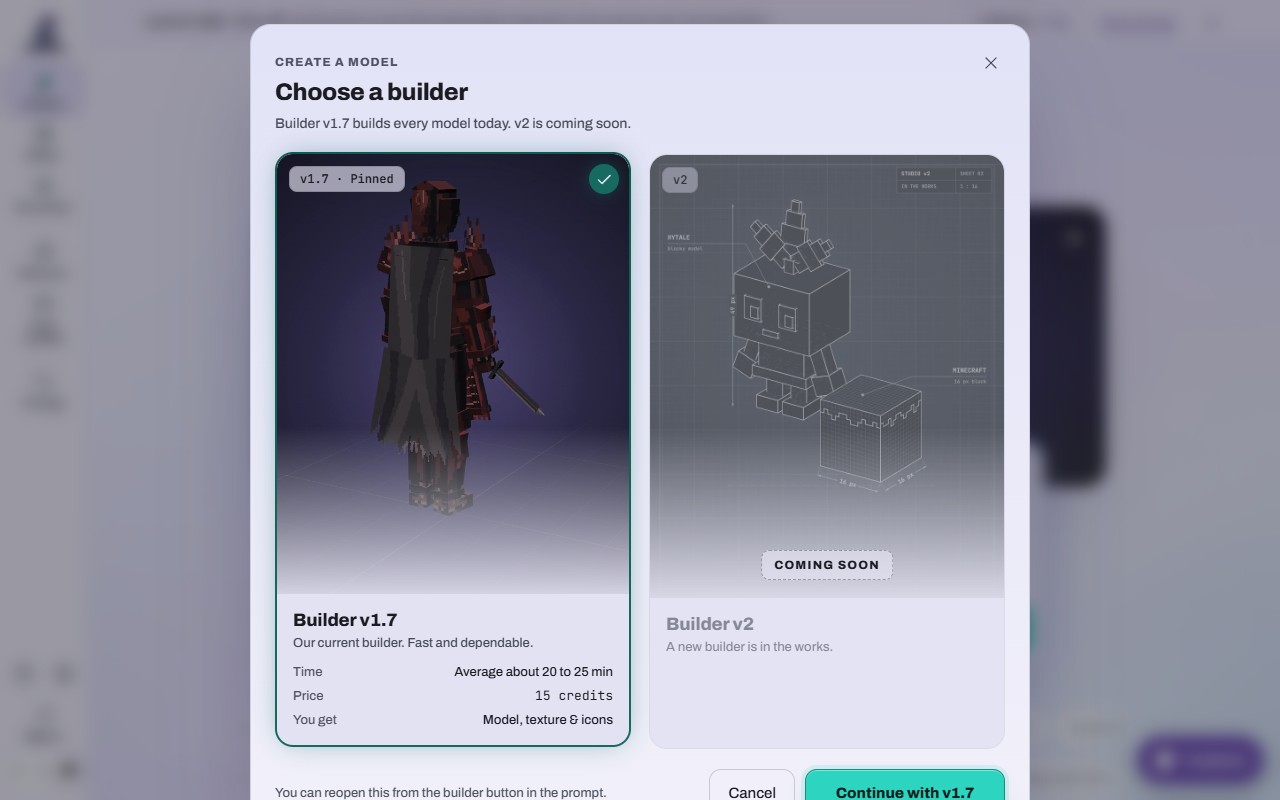
Optional: the Builder button (top left of the box) shows which builder Forge uses. Today that is v1.7 for every model; v2 is marked "coming soon".
 (opens the full picture in a new tab)
Optional: add a picture with Reference image (optional). See Make a model from a picture (reference pictures).
Press Build it (the button carries the price). A sheet, Review your build, shows the game, the builder, the price, your balance after, and What I read: the parts Forge understood from your description, which you can change in place. If Forge is not sure which game you mean, it asks first. Press Confirm to start; nothing is charged before that. When every builder is busy the button says Join the line instead, and your build starts when its turn comes.
Forge opens the build page and you can watch it work. You can close the tab: the build keeps going, and you find it later in My assets or Builds. See Watch a build and use the result page.
Signed out, the button says Sign up to build. It opens the sign-up card, and your description and picture are kept for when you come back.
On a phone
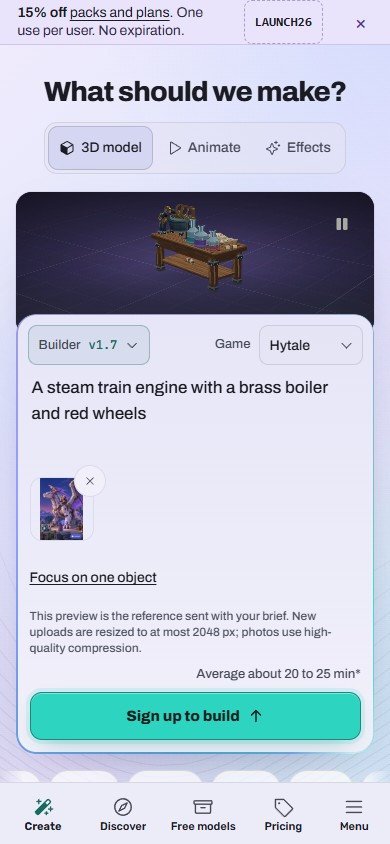
The same box fills the screen; the Builder and Game choices sit above the description, and the build button is under it.
 (opens the full picture in a new tab)
Other ways to start
Use this prompt on any free model or Discover model fills Create with that model's description.
Make one like this on a free model card, or Create something similar on a model page, starts a brief from that model.
Edit a saved model instead (under the box) changes one of your models instead of making a new one.
What it costs
15 credits a model (Builder v1.7, "Base": the .blockymodel, a painted PNG texture, inventory icons and a preview). The price shows before you confirm, and the credits are taken only when the build is accepted. If a build fails, its credits come back. A build takes about 20 to 25 minutes on average; busy times and detailed models can take longer.
If it does not work
The build button stays grey
Write a description or add a picture first.
"Not enough credits"
Buy a pack or choose a plan, see Credits, packs and plans (Pricing and Billing).
"Studio is under maintenance, please wait"
Forge is paused for a few minutes. Your description is kept; try again later.
You already have a build running
One build runs at a time per account. Wait for it to finish.
The build failed
Its credits are refunded automatically. Read the reason on the build page, change the description and try again.
Still stuck? Contact support