Help topics
Connect your AI (Claude, ChatGPT, Claude Code, Codex)
Myrlin Forge MCP lets an AI app use your Forge account: find your models, give you their Hytale and Minecraft files with the animations and effects you saved, and start new builds after you approve the price. A coding tool can even put the pack straight into your Hytale Mods folder.
Every app uses the same server address: https://api.myrlin.io/mcp. Name it myrlin-forge (or "Myrlin Forge") when you add it.
Claude (claude.ai, Claude Desktop, Claude mobile)
In Claude open Customize, then Connectors, then Add custom connector. (The Add Myrlin Forge to Claude link on forge.myrlin.io/docs/mcp fills this in for you.)
Name it Myrlin Forge and paste the address above.
Press Connect. Forge's page opens: sign in, choose what Claude can use, and approve. One connector covers claude.ai, Claude Desktop and the Claude phone apps. Claude's free plan allows one custom connector.
ChatGPT
In ChatGPT open Plugins, press the plus button, then Add custom MCP server, and create it as a plugin.
Name it Myrlin Forge, paste the address above, choose OAuth.
Connect, sign in to Forge and approve. Starting builds from ChatGPT needs a ChatGPT plan that allows actions from connected apps; looking at and downloading your models works on more plans.
Claude Code and Codex (coding tools)
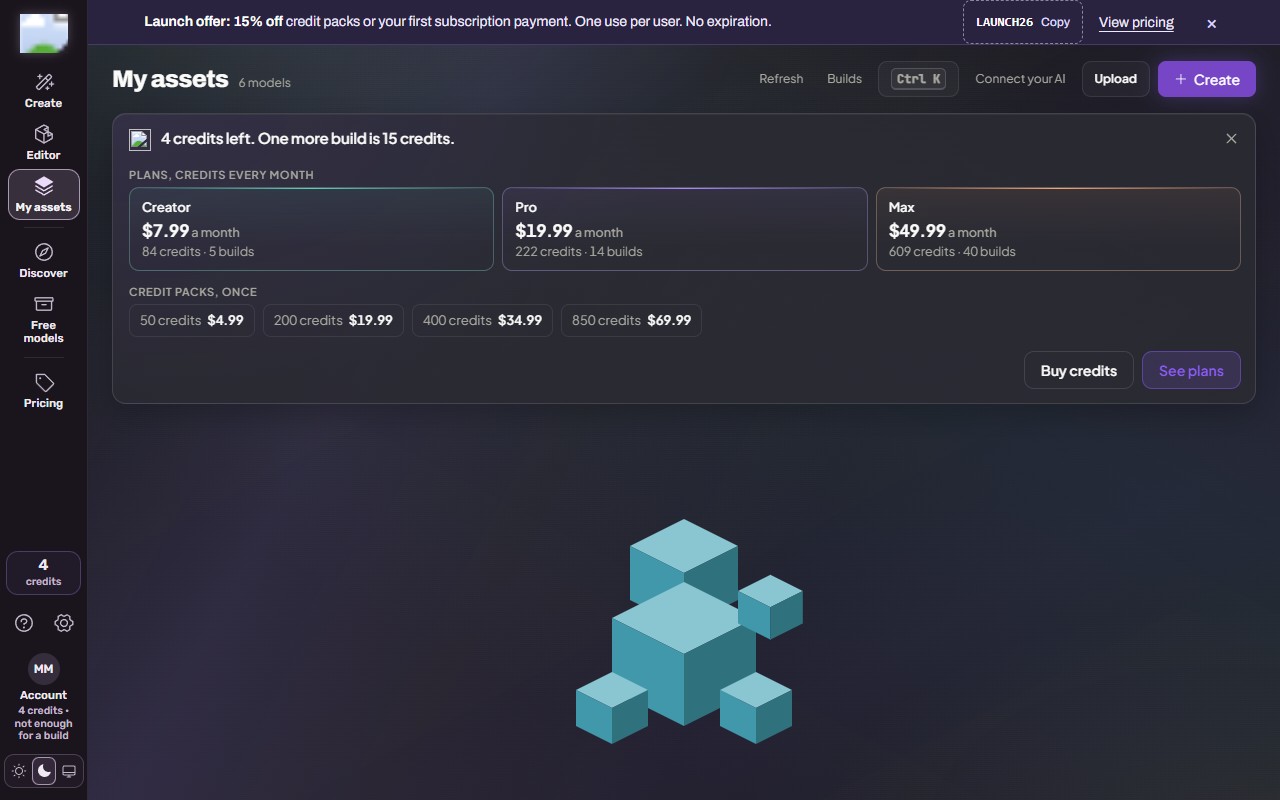
Make an AI key: in My assets press Connect your AI (or open Settings, Connect your AI), pick Claude Code or Codex, and make the key. It is shown once; copy it.
Copy the exact command for your tool from forge.myrlin.io/docs/mcp (the Claude Code and Codex sections), put your key in it, and run it in a terminal. For Codex, keep the key in the environment variable
MYRLIN_FORGE_API_KEYas that page shows.You can also sign in without a key: add the server without the key, then sign in from the tool (Claude Code:
/mcp, choose myrlin-forge; Codex:codex mcp login myrlin-forge).
Cursor, VS Code and other MCP apps: use the same address and send the header Authorization: Bearer <your AI key>.
 (opens the full picture in a new tab)
What to ask
"Make me a frost dragon for Hytale and put it in my Hytale Mods folder. Ask me before you buy."
"List my Forge models that have animations."
"Give me the Minecraft package for my Ember Fox that works without mods, and tell me where to put it."
Every install ends with one short code and one link, such as forge.myrlin.io/get/K7QP3MXD. Open the link to download. The code works for 7 days and always gives the model's current version; from a build, it starts working when the build is done.
Limits and safety
Every build is quoted first; the AI must use the quoted price, and the app asks you before a tool that spends credits.
When you make a key or approve an app you can set a spending limit (credits a day, credits a build) or switch building off. Change it later under Connect your AI.
The AI sees only your account (and only the models you chose, if you limited it). It cannot delete models, change your plan or buy credits. Revoke the key or remove the app under Connect your AI and it stops at once. A new key replaces the old one.
What it costs
Connecting is free, on every account. Builds cost the same as in Create (15 credits a model) and come from your normal balance. There is no daily build cap for AI apps; an hourly limit per account keeps the builders free for everyone.
If it does not work
The app says it is not signed in
Remove the connector or server and add it again, or make a new AI key.
Codex gets a 401 right after setting the key with setx
Open a new terminal, then start Codex.
A download fails in Codex
Its default sandbox has no network; approve network access when asked.
"Too many builds in the last hour" or "the builders are busy"
Nothing was charged; ask again later.
The link stopped working
Install codes last 7 days. Ask the AI to install the model again.
"The model is still building"
Open the same link again when the build is done.
The model is missing
You limited the connection to some models; change it under Connect your AI.
Full guide: forge.myrlin.io/docs/mcp (for AI agents: forge.myrlin.io/docs/mcp.md).
Still stuck? Contact support