Tips and tricks for your next build
How to write a request Myrlin reads the way you mean it, pick a reference picture, make small changes and get the finished model into Hytale or Minecraft.
Here are some tips from the team for writing a request in Create, picking a reference picture, making small changes and getting the finished model into your game. Everything here works today on every account, free or paid.
Writing the request
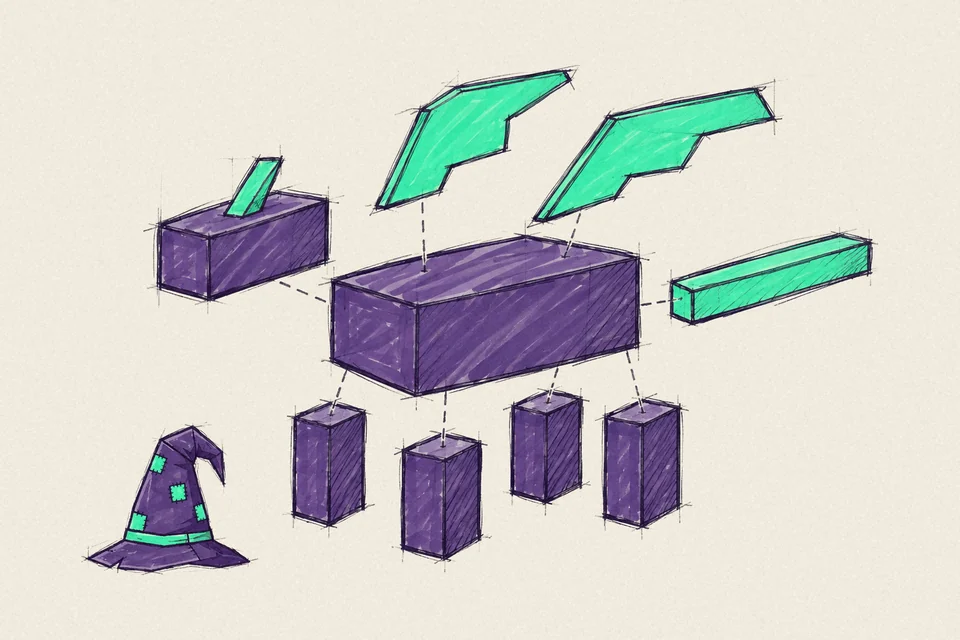
Name the thing, then its body plan
Start with what it is, then how its body’s put together: four legs and a long tail, two wings, one horn. If your words and your picture disagree, Myrlin goes with the words, so describe the shape even when you’ve attached a picture.
Make a model from a description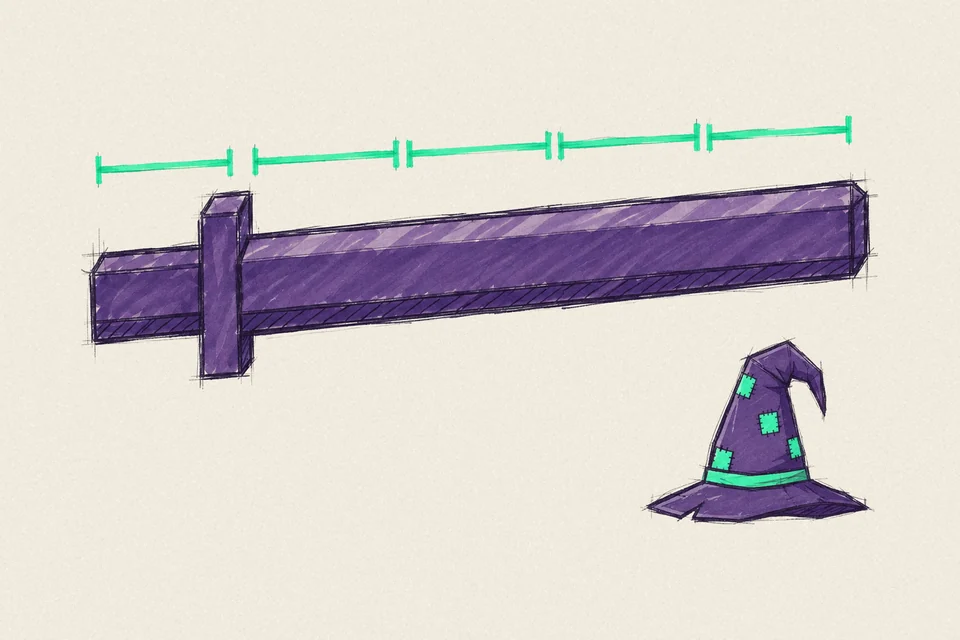
Give sizes as comparisons
“A tail as long as its body” or “a blade four times as long as the grip” gives the builder something to measure. It takes your words literally, so a loose word like slim or chunky can push the whole shape further than you meant.
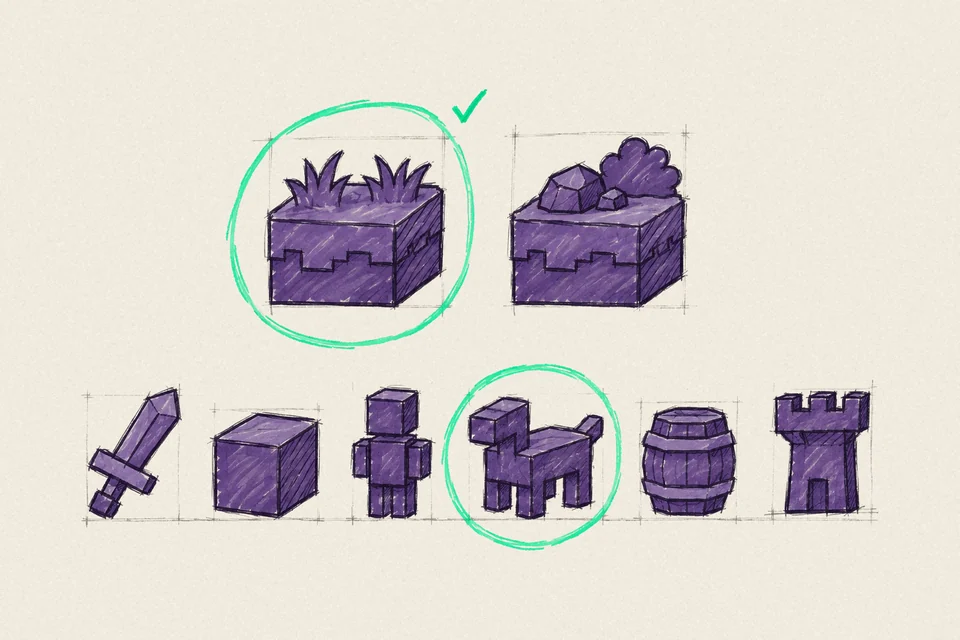
Pick the game and the kind of thing
The Game choice sets the size and which downloads Myrlin gets ready first. Under Build settings you can tell it whether it’s an item, a block, a character, a creature, a prop or a structure.
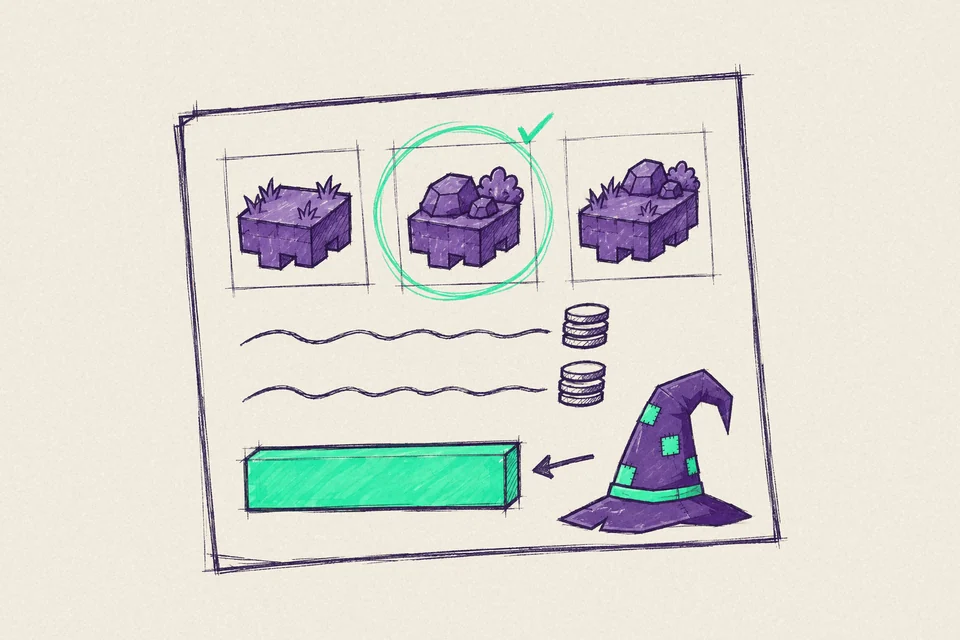
Check the review sheet before you confirm
Review your build shows where the model will be used, the price and your balance. Pick the game there if it’s not the one you meant. You’re not charged until you press Confirm, and if a build fails you get its credits back.
Reference pictures
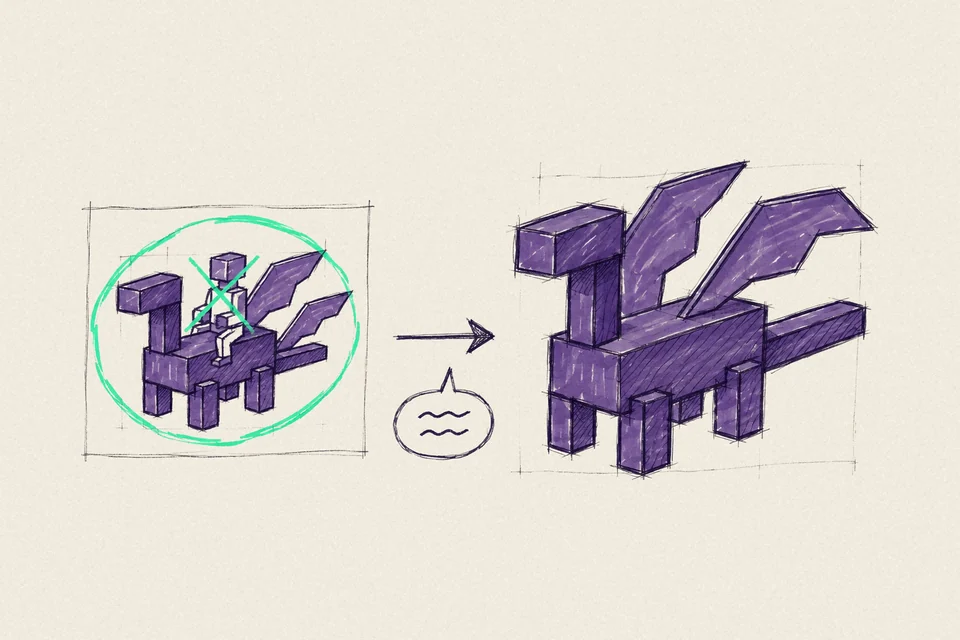
Say what you want from the picture
Once you attach a picture, the box asks you exactly that. A few words like “the dragon only, not the rider” tell Myrlin which thing in the picture to build.
Make a model from a picture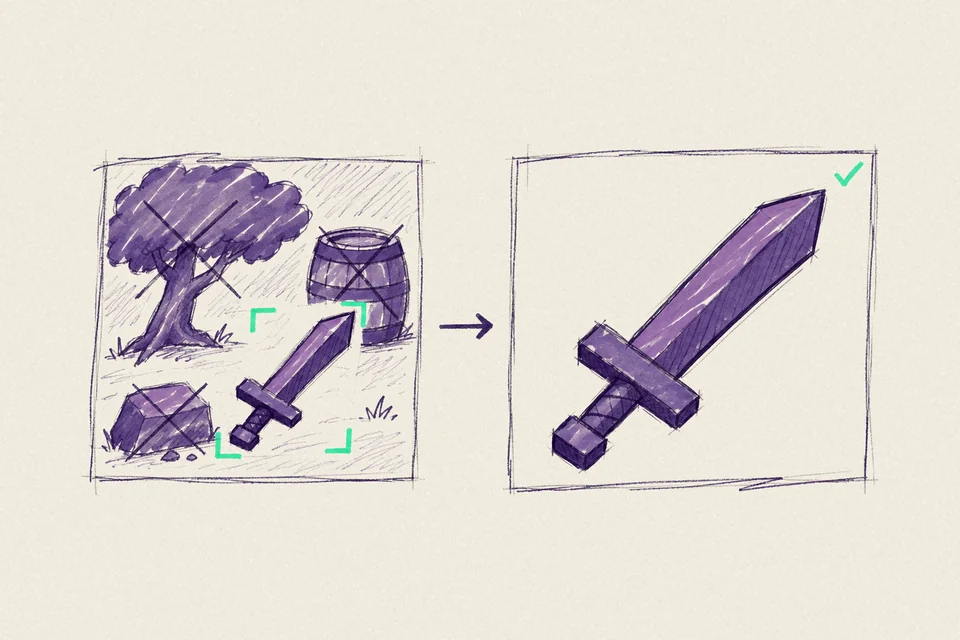
Use a picture with one subject
If the model picks up the background or a second object, crop the picture with Focus on one object, or add “only the sword” (or whatever it is you want) to your words. JPG, PNG and WebP up to 8 MB all work.
Small changes
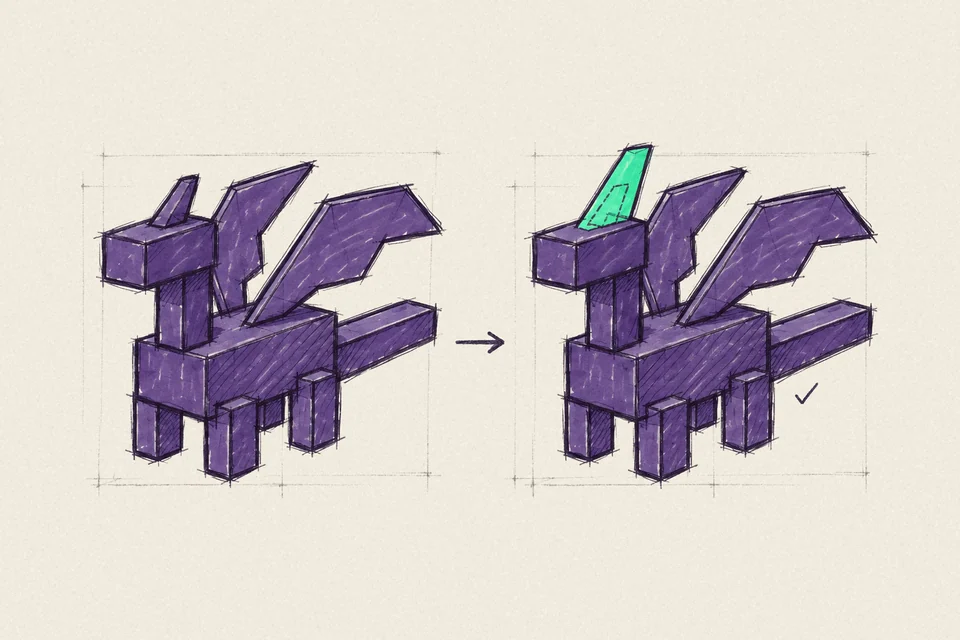
Change a model you have with Edit
For a small change, don’t build a new model. Press Edit on the build page, or Edit a saved model instead in Create. You’ll see the price before you confirm, and the change saves as a new version.
The build page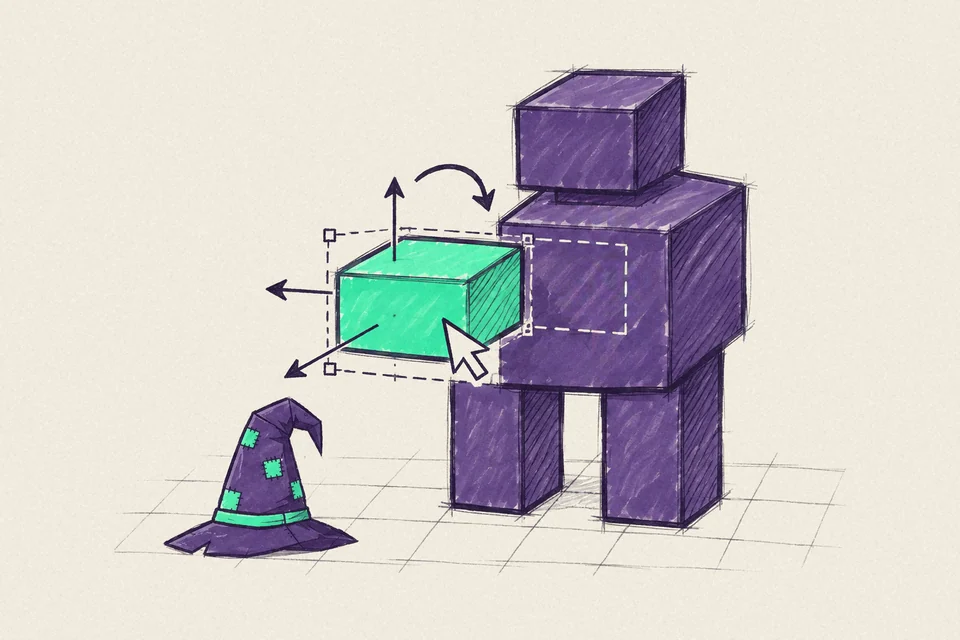
Move the boxes yourself in the Editor
The Editor runs in your browser and it’s free. Open your model, select a part, type in a new size or turn it, and play its animations.
The Editor
Into your game
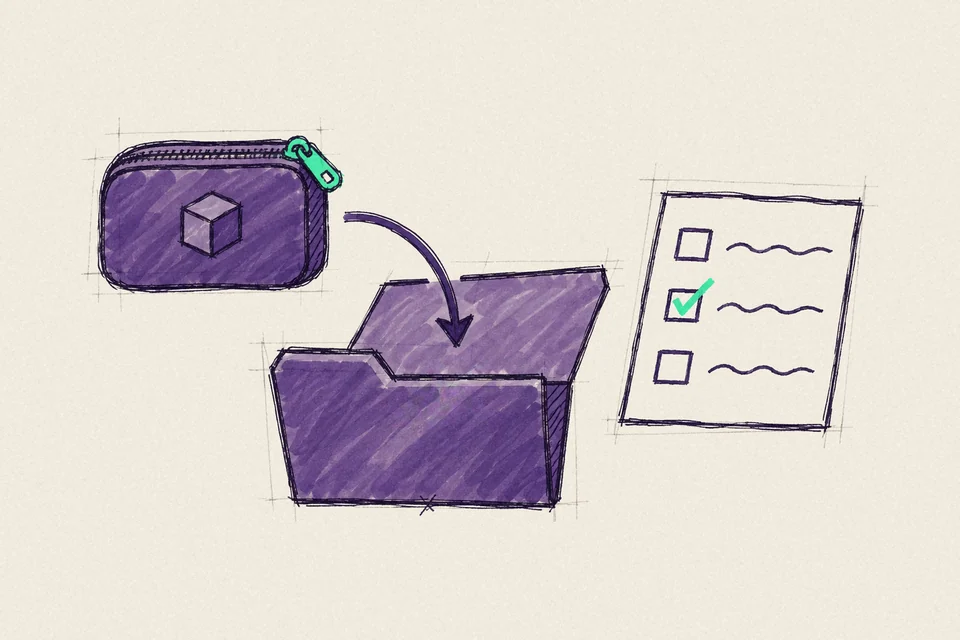
Hytale: keep the pack zipped
Don’t unzip it. Drag the ZIP straight into Hytale’s Mods folder, then tick it in the world’s Mods tab. Mods are off in every world until you tick them.
Hytale pack guide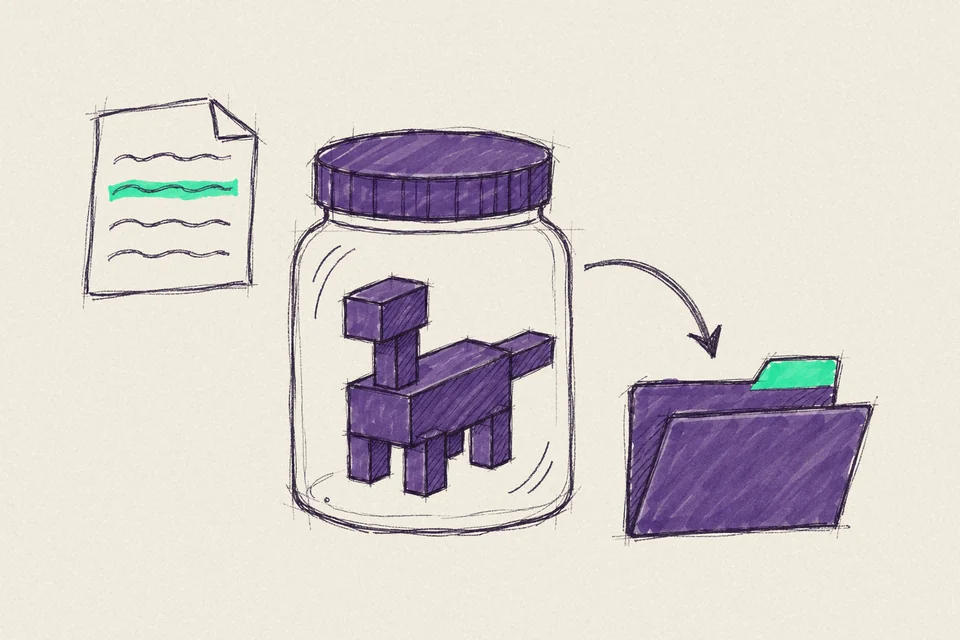
Minecraft: read the README first
For a mod, install whichever loader README.txt names (Forge, NeoForge or Fabric), then drop the .jar itself in the mods folder. Fabric needs Fabric API too, and a creature needs GeckoLib.
Minecraft guide