Blockbench guide
bbmodel to PNG: how to get an image out of a Blockbench model
A .bbmodel is a Blockbench project written as JSON: an image viewer cannot open it, and renaming it to .png changes nothing.
The short answer
Open it in Blockbench and save the image you need: Save As on the texture, View > Screenshot Model (Ctrl+P) for a picture, or the Menu Icon Exporter plugin for an icon.
On this page7 sections
Why a .bbmodel is not a PNG
“Blockbench uses the .bbmodel file format to save projects as files,” the wiki says, and “.bbmodel files are JSON-based.” The file lists the model’s elements, groups, outliner, textures and animations.
Save the texture as a PNG
- Step 1
Open the model
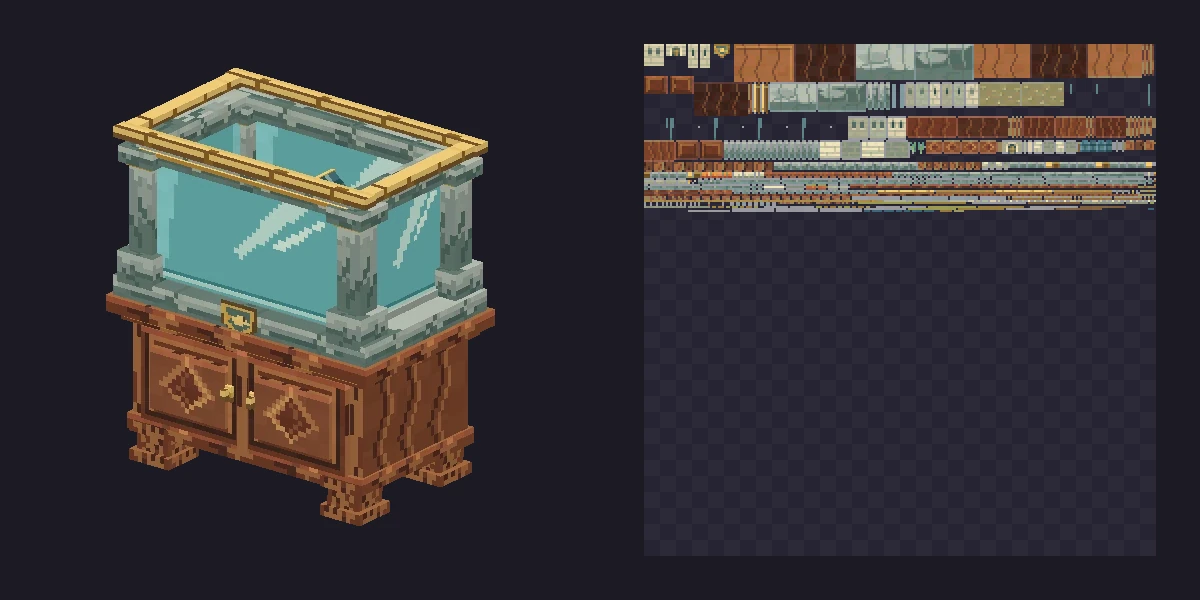
In the desktop app or the Blockbench web app (opens in a new tab). Its textures are in the Textures panel, in Edit and Paint mode.
File, then Open Model
- Step 2
Choose Save As
Right-click the texture, Save As; the web app downloads it. Save, just above, only shows for a texture with unsaved changes and a file on disk, and overwrites that file.
- Step 3
Check the format and size
Save As keeps the texture’s format: PNG unless it came in as JPEG, WebP or TGA. Properties, at the menu’s foot, shows the File Format (switch to PNG there) and the size in pixels in its title.
Save Textures, in the panel’s right-click menu, will “Save all unsaved textures”. File > Download Archive will “Download an archive with the model and all textures in it”: a ZIP holding, in Blockbench’s source, only the textures inside the project, each as a PNG.
File > Export > Export Image (“Export your texture as an image file”) only appears in an Image project tab (the 2D image editor), which a texture’s Edit in Blockbench opens. For a model’s texture, Save As is shorter.
Take a picture of the model
Screenshot Model will “Take a cropped screenshot of the model from the current angle”, without edit gizmos: View, Ctrl+P or the viewport’s right-click menu, where the wiki notes you can pick a preset angle, or save and load your own, first.
Its window shows the size in pixels, file size and type. Clipboard copies, Save writes a .png file, Edit opens it as an image in Blockbench, Cancel closes.
Advanced Screenshot will “Take a screenshot of the model with advanced options”: Angle Preset, Resolution (it starts at 1920 by 1080), Zoom / Focal Length, Anti-aliasing (Off, Multisampling or Supersampling), Show Edit Gizmos and Shading. Export opens the same window.
Record GIF will “Record an animated GIF of the model from the current angle”; its Format also offers PNG Sequence, the frames in a ZIP.
Make menu and item icons
Menu Icon Exporter, by NET, for the desktop and web apps and tagged for Minecraft, will “Export perfect menu/item icons with advanced camera controls”: PNG icons with stable framing, a live preview and full manual camera controls, says its about page.
- Step 1
Install it
Search for Menu Icon Exporter and install it.
File, then Plugins
- Step 2
Open the exporter
A floating window; File > Export > Icon Exporter Panel docks it in the sidebar instead.
File, then Export, then Export Menu Icon
- Step 3
Frame the model
Automatically, or set zoom, rotation on X, Y and Z and pan on X and Y by hand.
- Step 4
Set the size and export
Pick the Icon Size, a Background (Transparent at first; White, Black, Gray or a custom color) and the Quality, then click Export Icon.
Menu Icon Exporter
16 to 128
pixels: the icon sizes
16, 32, 48, 64 or 128
8 to 512
pixels for a custom size
4x to 16x
quality
Standard 4x, High 8x, Ultra 16x
Without a plugin, the screenshot code has one icon case: in Display mode with the GUI slot selected, Screenshot Model crops to the square GUI preview. The display settings control “how items look in guis and hand”, says the wiki.
From Myrlin Studio, a Hytale model’s general download has inventory and menu images under Supporting files, beside its PNG texture atlas; a Minecraft model exports as a .bbmodel with its PNG.
Render it with lighting
The wiki: “To get an image of your Blockbench model with realistic lighting, you need to render it in an external program.” It recommends glTF (read by every program it covers, one file, hierarchy and animations kept), from File > Export > Export glTF Model:
- Sketchfab: File > Export > Upload to Sketchfab, then a plain screenshot, or Sketchfab’s Screenshot tool for a set resolution or a transparent background.
- Light Tracer: drag the glTF into the browser or desktop app, set up the scene, press Save render to image. JannisX11’s Light Tracer Uploader plugin will “Upload models to Light Tracer to share them or to create renders”.
- Blender: File > Import > glTF 2.0, set camera and lights, F12, then Image > Save for a PNG.
Questions
- How do I convert a .bbmodel to a PNG?
- There is nothing to convert: it is a project file. In Blockbench, save the texture (Save As), a picture (View, Screenshot Model) or an icon (Menu Icon Exporter).
- Where is the texture inside a .bbmodel?
- With Embed Textures on, the default, it is stored inside as encoded data; off, only its path is. Save As writes it out either way.
- A website says it needs a PNG. Can I upload my .bbmodel?
- No: it is a JSON-based Blockbench project, not an image. Upload a saved texture or screenshot.
- How do I get a PNG of my model with a transparent background?
- Menu Icon Exporter starts on Transparent, from 8 to 512 pixels. For lit renders the wiki lists transparent backgrounds in Sketchfab, Blender and the paid Light Tracer.
- Can I get a PNG from a .bbmodel without installing Blockbench?
- Yes. The web app at web.blockbench.net opens model files, and Save As, Screenshot Model and Menu Icon Exporter work there too.
Sources
- Blockbench wiki: The .bbmodel format (opens in a new tab)
- Blockbench home page (opens in a new tab): The desktop download and the web app link.
- Blockbench wiki: Blockbench Overview & Tips (opens in a new tab): Screenshots, the viewport menu and the Textures panel.
- Blockbench wiki: Rendering Models (opens in a new tab): Sketchfab, Light Tracer and Blender, and their transparent backgrounds.
- Blockbench wiki: Formats (opens in a new tab): The note on item display settings.
- Blockbench source: interface text (opens in a new tab): Action names and descriptions, the Screenshot window buttons, the Advanced Screenshot fields and the Embed Textures setting.
- Blockbench source: menu bar (opens in a new tab): Where the File, Export and View entries sit.
- Blockbench source: textures (opens in a new tab): The texture menu, Save As, the file formats and the Properties window.
- Blockbench source: screenshots (opens in a new tab): The Screenshot window, Advanced Screenshot, the GUI crop and PNG Sequence.
- Blockbench source: image format (opens in a new tab): When Export Image appears.
- Blockbench source: file actions (opens in a new tab): What Download Archive puts in the ZIP.
- Blockbench source: .bbmodel codec (opens in a new tab): How textures are embedded.
- Blockbench source: settings (opens in a new tab): Embed Textures is on by default.
- Blockbench plugin registry (plugins.json) (opens in a new tab): Menu Icon Exporter and Light Tracer Uploader.
- Menu Icon Exporter about page (opens in a new tab)
- Menu Icon Exporter source (opens in a new tab): The menu entries, sizes, backgrounds and quality levels.
- Myrlin Studio: Hytale model maker (opens in a new tab): Inventory and menu images in the general download, read 2026-11-24.
- Myrlin Studio: Turn a picture into a Minecraft model (opens in a new tab): The .bbmodel and PNG export, read 2026-11-24.
Facts checked on .
Guides and pages